

When Your Code Does Not Download Automatically
If you would like to use the JavaScript environment in Safari, you can still save your code and images, but the process is different.
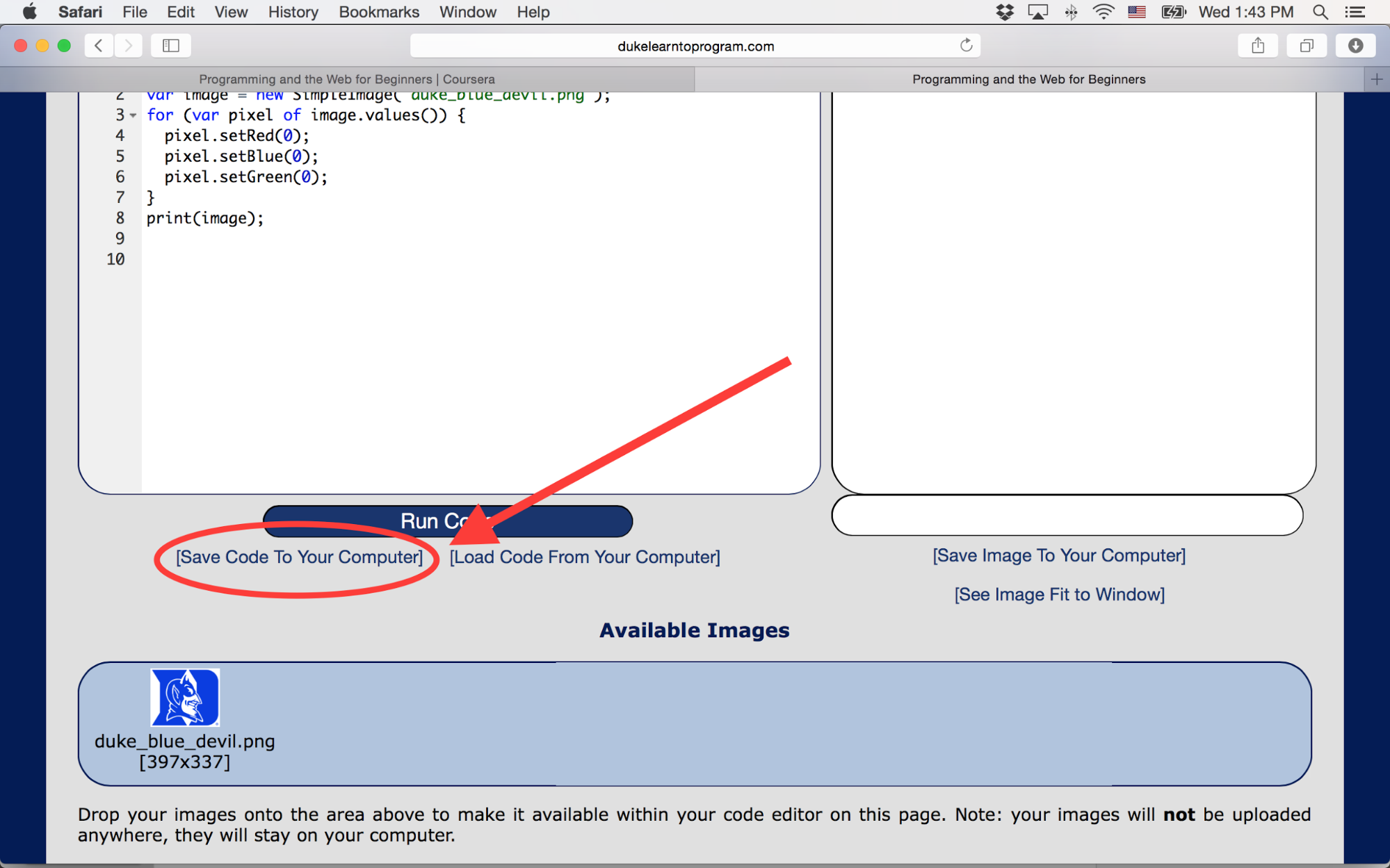
Click “[Save Code To Your Computer]” below the “Code It” window.
This opens the code in the same tab:
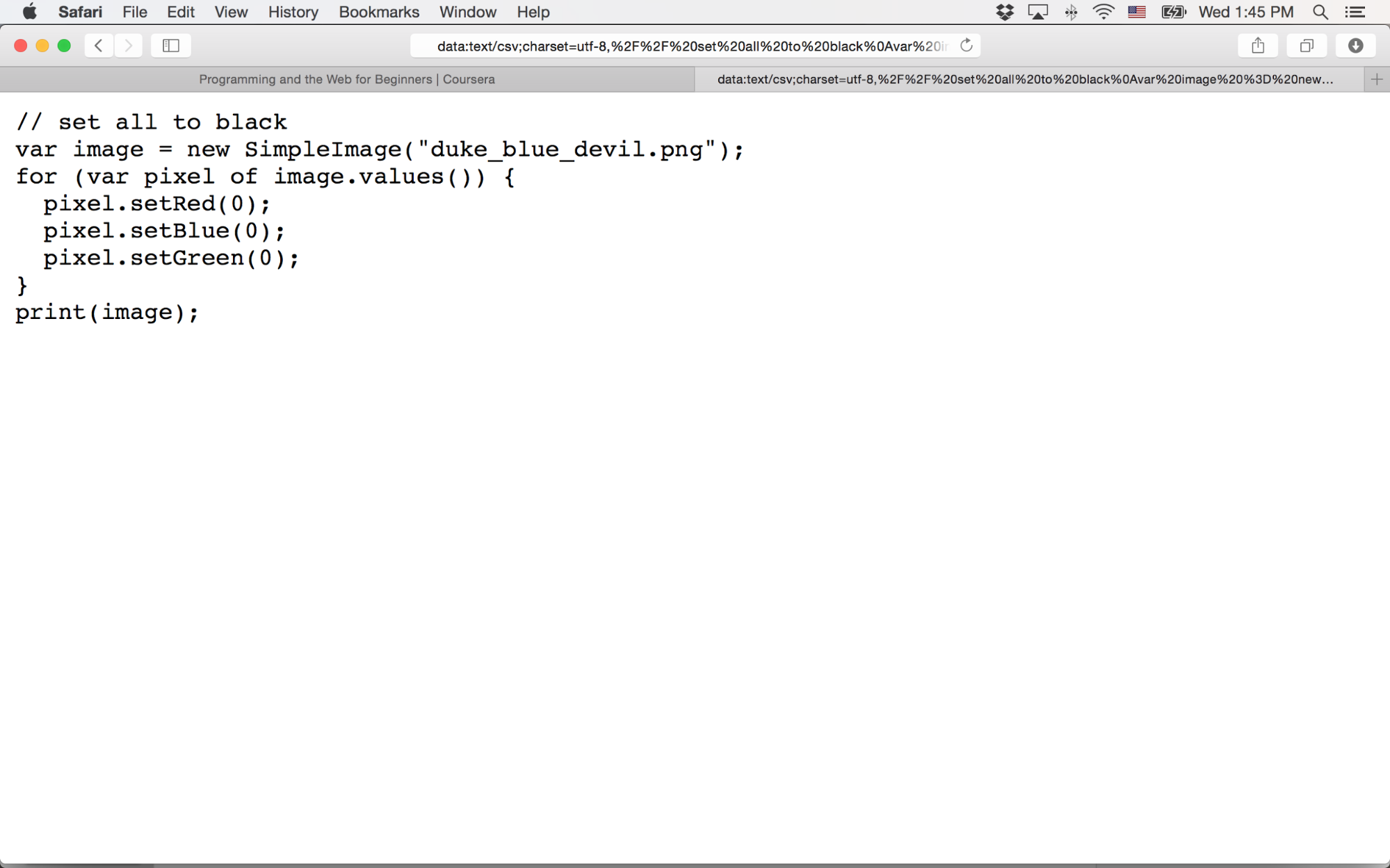
Then save your code by right clicking (or control-clicking) anywhere not on the text and selecting “Save Page As…” making sure that the drop-down menu for “Format:” has “Page Source” selected.
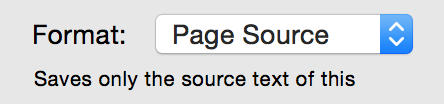
This will save your code as a file that you can open in a text editor or upload to the JavaScript environment next time you need it.
Similarly, to save an image, click “[Save Image To Your Computer]” and agree to leave the page (make sure your code is saved first). Right click on the image to save it.
